Why GTA VI subtitles can disappear outside missions on PS5
The first setup screen lets you choose a size. A separate setting decides when dialogue appears, and the preview helps you adjust contrast from the sofa.
Choosing Large on GTA VI’s opening subtitle screen can give you large, legible dialogue in a mission and silence on the screen once you leave it. On PS5, that first choice sets the lettering. The pause menu has a second control for when dialogue appears. That’s the one to check if the words are the right size but keep disappearing.
Find the setting that decides when words appear
Pause the game, open Settings and use R1 to reach the UI tab. Scroll just past Scaling & Readability to Subtitles & Captions. Look at the value beside Subtitles, the first row in that group. If it reads Mission Only, use left or right on that row to change the dialogue coverage. You can do this during play. There’s no need to repeat the opening setup.
The distinction is easy to miss because that first screen offers Off, Small, Medium and Large in a single list. In AllThingsHow’s PS5 walkthrough, picking Medium left the pause menu showing Mission Only and Medium. ViceManual’s PS5 capture shows the same mission setting alongside Small. Both are possible because the game remembers size and coverage separately.
When you can read the line but can’t tell who said it
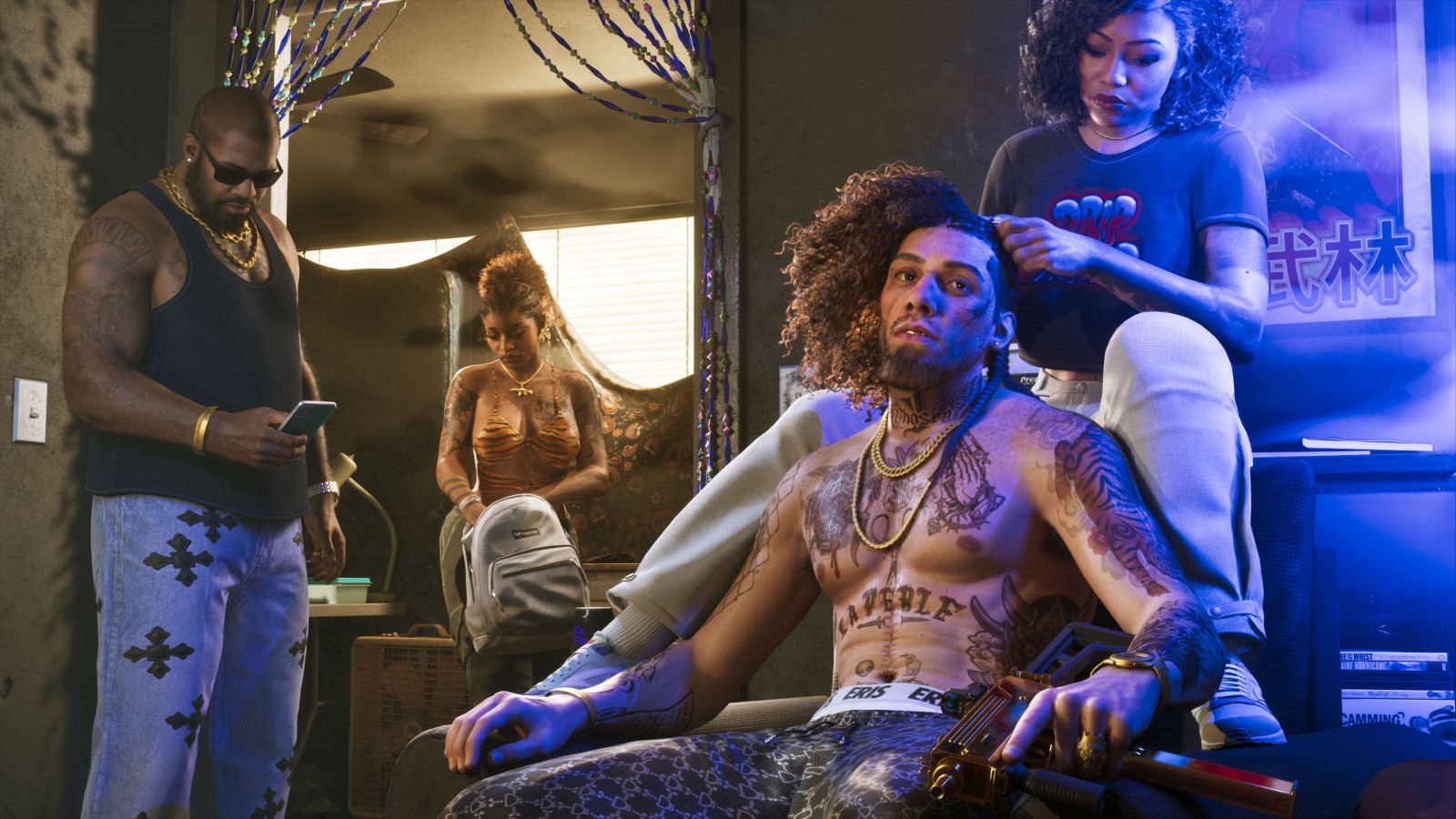
Speaker Names adds information that bigger letters can’t supply. When the camera stays on the listener, or several people are talking in a room, identifying the voice can be harder than reading the sentence. Turn the names on if that’s where you lose the thread. If it’s the words themselves that disappear against pale pavement or sky, try a background first. It puts contrast directly behind the line without changing the brightness of the entire scene.
Closed Captions has its own row. If you play with the sound low and rely on written cues for more than speech, check that setting separately. The background applies to both subtitles and closed captions. For a wider look at the other controls, see GeekRadar’s guide to GTA VI accessibility options.
At the bottom of the settings screen, a sample line changes as you adjust the presentation. Sit where you normally play and try the background before moving up another size. If you can read the sample comfortably from there, you’ve answered the lettering question. If lines still disappear the moment a mission ends, you know exactly which row to return to.