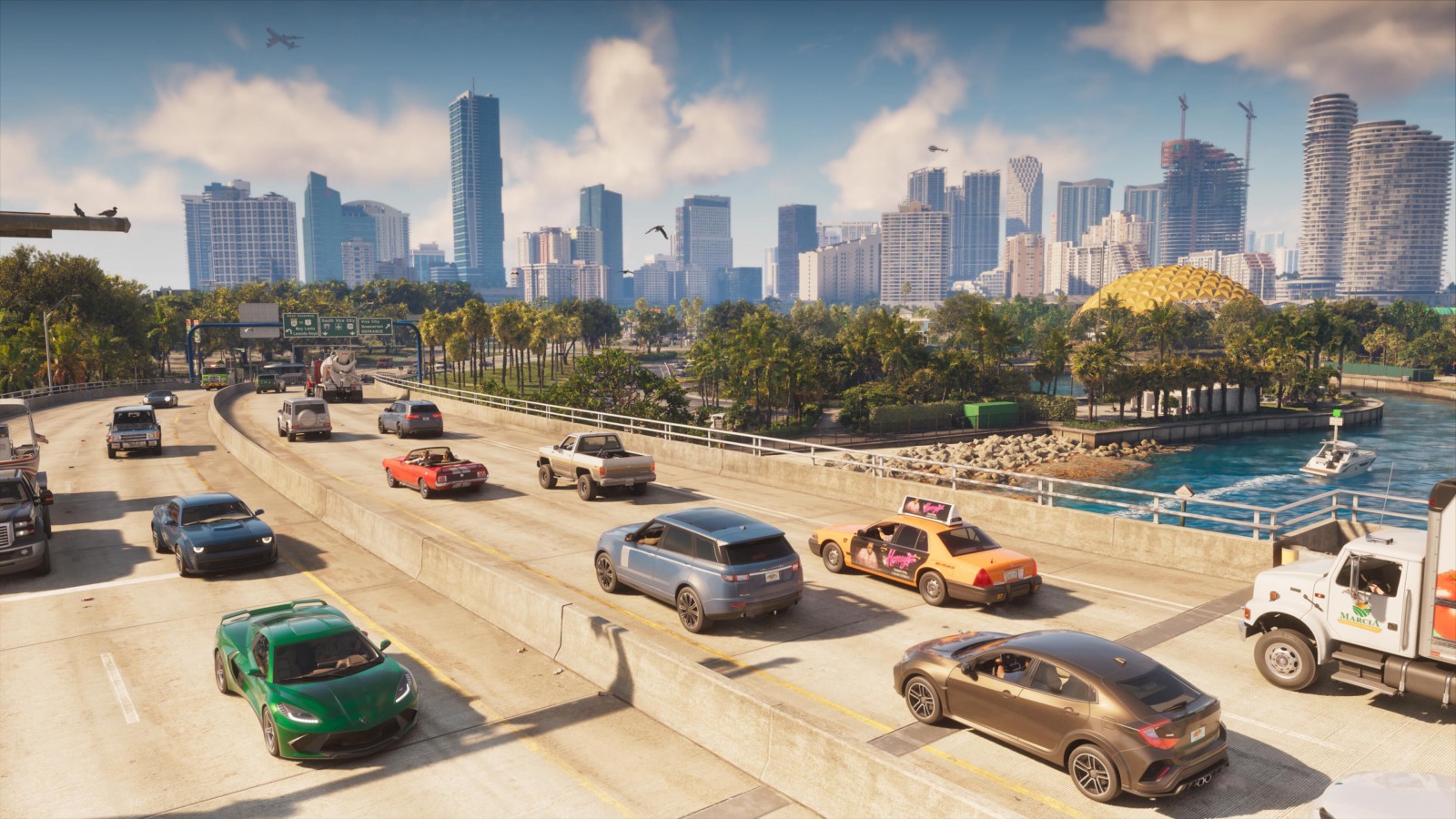
How to mark a place in GTA VI and set a GPS route somewhere else
Square saves a spot on the PS5 map. Cross makes it your destination. The game also lets you keep the pink route while changing the turn prompts you see on the road.
See a shop you want to visit after a drive across Vice City? On the Grand Theft Auto VI map, you can mark the shop and still ask for directions somewhere else. Add Marker is the button for a place you want to remember. Set Destination is the one that tells the GPS where you want to go. On PS5 those prompts sit side by side and use different face buttons.
With the default controls, press the touch pad on PS5 or the View button on Xbox Series X|S to open the map. GTABase’s controller layout distinguishes the map shortcut from the pause button on both consoles. If you’ve reassigned the PS5 touch pad, press Options and choose Map from the pause menu instead.
Mark the shop, route to the entrance
In the PS5 map screen and button guide, the controls sit at the lower right. Move the map until the spot you want sits under the ring in the middle of the screen. The round arrow shows your character. You can scroll those two symbols a considerable distance apart, so check which one you’re looking at before confirming a destination.
| What you want to do | PS5 map control |
|---|---|
| Leave a marker at the cursor | Square |
| Get directions to the cursor | Cross |
| Find your character again after scrolling | Click the left stick (L3) |
| See the streets in a flat, overhead view | Click the right stick (R3) |
On Xbox, A confirms Set Destination. You can pick a map icon or a point on the ground. Beebom’s waypoint guide makes a useful observation about big destinations: the middle of a park may be a long walk from its entrance. Put the cursor on the road where you actually intend to leave the car. Back in the driver’s seat, the minimap shows the route in pink along with the distance remaining.
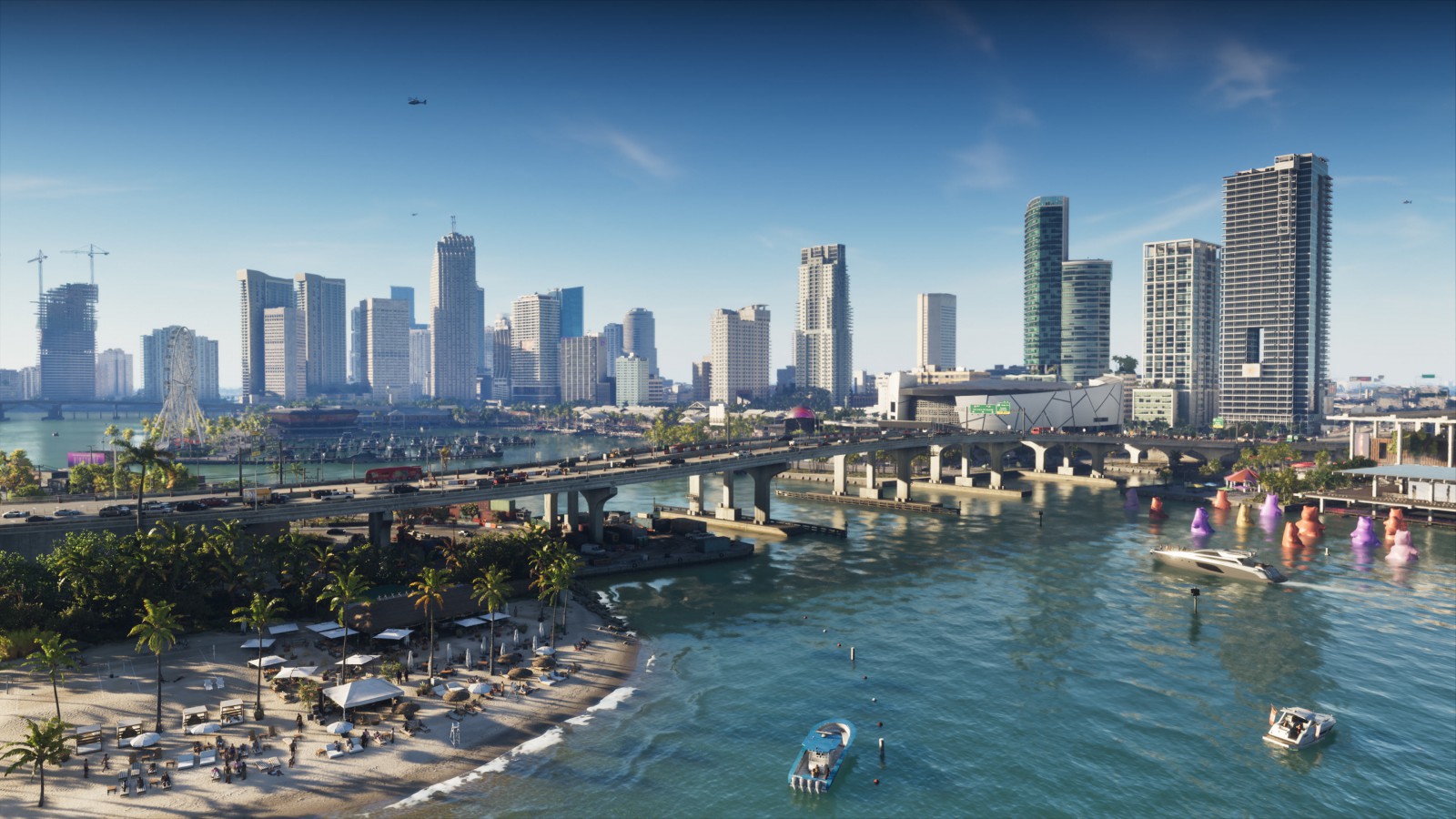
Keep directions without keeping every prompt
There are two decisions to make when the directions feel too busy. First, decide when the minimap should appear. The initial setup offers dynamic display, dynamic display with a compass, or an always-visible minimap. You can revisit that choice later. Second, decide what the map should show while it’s there. In Settings → UI → Navigation, the route and the turn indicators have separate controls, as the PS5 settings walkthrough shows. If you like following the line but don’t need an extra prompt at every junction, adjust the turn indicators and leave the route enabled.
That distinction is particularly handy along the waterfront. You can know exactly which building you want and still approach it from the wrong side of a canal. Keep a marker on the building, give the GPS the street that reaches its door, and let each symbol do its own job. For trips you’d rather leave to someone else, Leonida’s two taxi services give that same destination a different price.