Before GTA VI, check the PS5 backup that protects your progress—not just its installation
Cloud synchronization and USB console backups do different jobs. Restoring the wrong copy can sacrifice newer progress elsewhere.
In this guide
Downloading GTA VI again would be inconvenient. Replacing the hours you spend playing it may be impossible. Before starting a long game, it is worth separating the installation from the save data: one contains the software, while the other records your progress.
On PlayStation 5, the two have different backup arrangements. Sony provides cloud synchronization for saved data through PlayStation Plus and a separate USB console-backup process. Neither should be confused with moving an installation to external storage to free space for Grand Theft Auto VI.
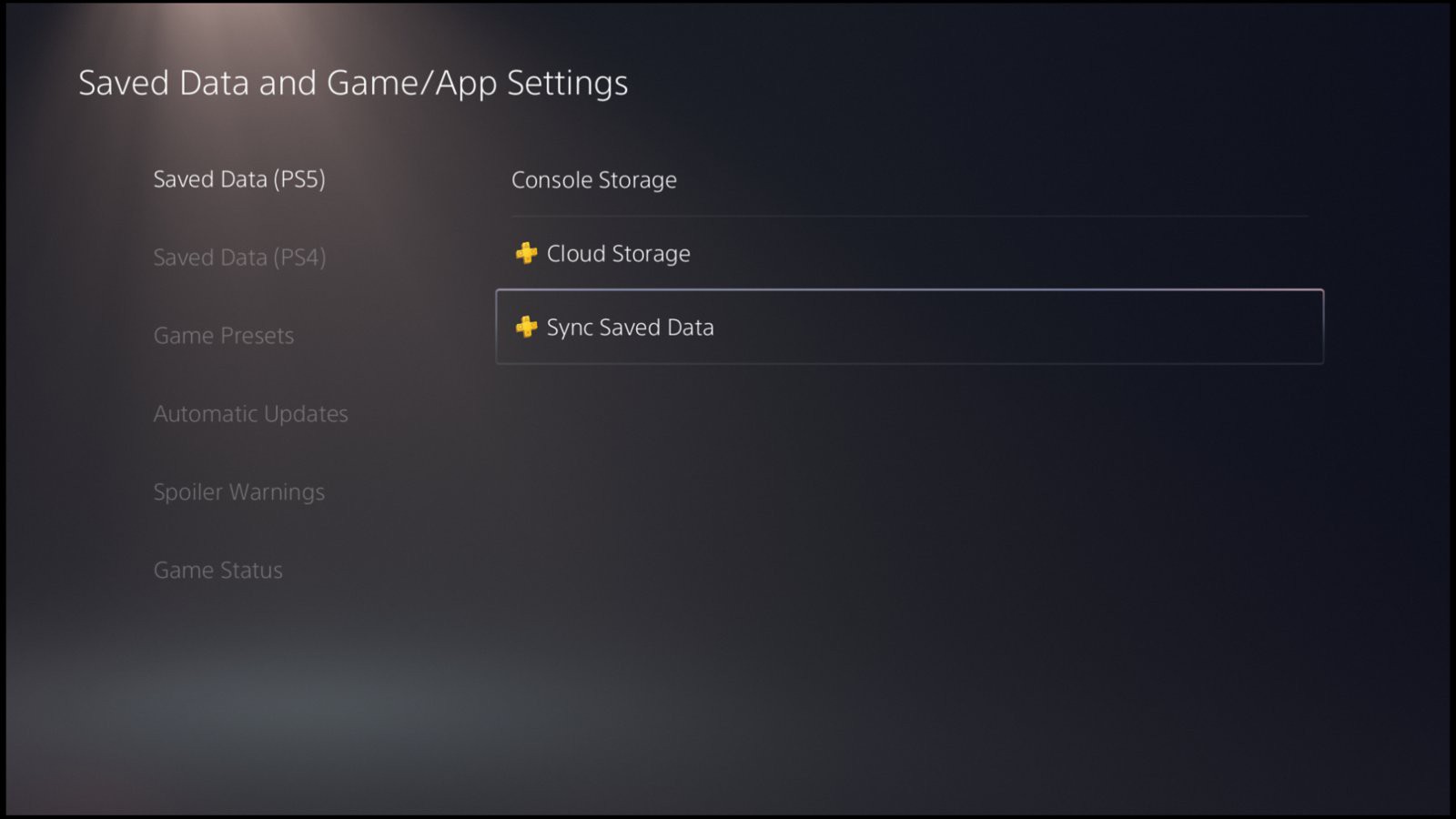
Check synchronization, not just the subscription badge
Sony’s cloud-storage documentation explains that PS5 saves can synchronize when you close a game or put the console into rest mode, with the necessary automatic-update and internet settings enabled. It also provides a per-game sync-status check. Having a subscription is therefore only one part of the arrangement; checking whether the save actually synchronized is the practical confirmation.
After GTA VI becomes playable and has created saved data, review its status through the console’s saved-data controls. Do this after a session you would particularly dislike losing, and before changing consoles. It is a small verification with a clearer purpose than repeatedly checking that the game remains installed.
Synchronization follows the current saved data. It should not be treated as an unlimited history of earlier decisions. If your aim is to preserve a particular point in a game, first establish what save-slot options that game actually provides. This guide does not assume GTA VI has a particular number of manual slots or a specific autosave interval.
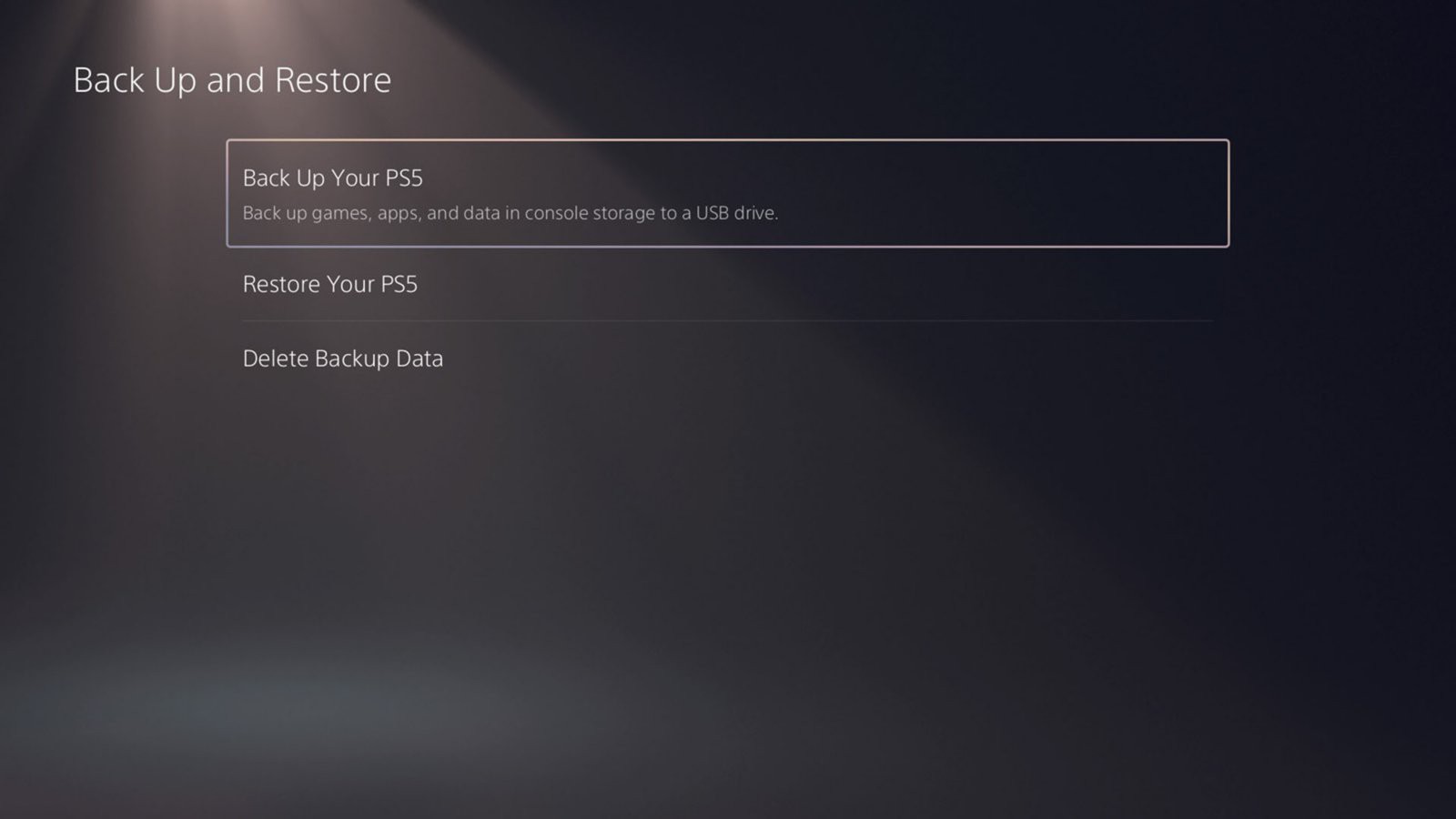
A USB console backup is a larger operation
Sony also documents backing up PS5 data to USB. The supported backup can include saved data, settings, captures and games. It is a console-level recovery method, not a casual substitute for selecting one older save from a menu.
The crucial consequence is at restoration: restoring the backup erases the data currently on the console before putting the backup back. That makes the age and contents of the backup important. Recovering one older item can otherwise mean discarding newer progress in other games.
Use the official preparation instructions, including the supported USB format, and do not interrupt a backup or restoration. An extended-storage drive used for game installations is formatted differently from the USB storage used for this backup process. Our PS5 storage guide explains why the word “storage” can conceal several different jobs.
Protect the account as well as the files
Keep the account that owns your game and the account under which you play clear in your mind, particularly on a shared console. Our shared-PS5 guide explains why access to one purchased game need not mean everyone plays under the same personal account. Separate profiles also keep the identity of the person whose progress is being backed up clear.
Before a console repair, replacement or reset, stop and verify the relevant copy rather than assuming a background process finished. A successful game download is not evidence that a save upload succeeded, and an old backup is only as useful as the date it represents.
The first hour in Leonida belongs to the game. A minute spent checking how the console protects the next twenty hours is a sensible investment before those hours become irreplaceable.