Omarchy’s new file manager shows up when you hit Save
The 4.6 release candidate replaces Nautilus with Folio. It also changes how other apps ask you to pick a file, right down to which options appear beside the filename.
Press Super + Shift + F on the first release candidate of Omarchy 4.6 and a different file manager answers. Folio takes over from Nautilus on existing installations that adopt the candidate as well as on fresh installs. The less obvious change happens with the file manager closed. Ask a browser to upload a picture, or an editor to save a document, and Folio may be the window that opens. Omarchy 4.6 RC1 release notes
That second job makes this update worth trying with the applications you actually use. The same component that shows you a folder full of downloads also decides which controls you see when another program asks for a filename. The November 27 build is a release candidate. Omarchy advises testing it on a spare machine or keeping a backup you know how to restore.
Two ways to look at the same file
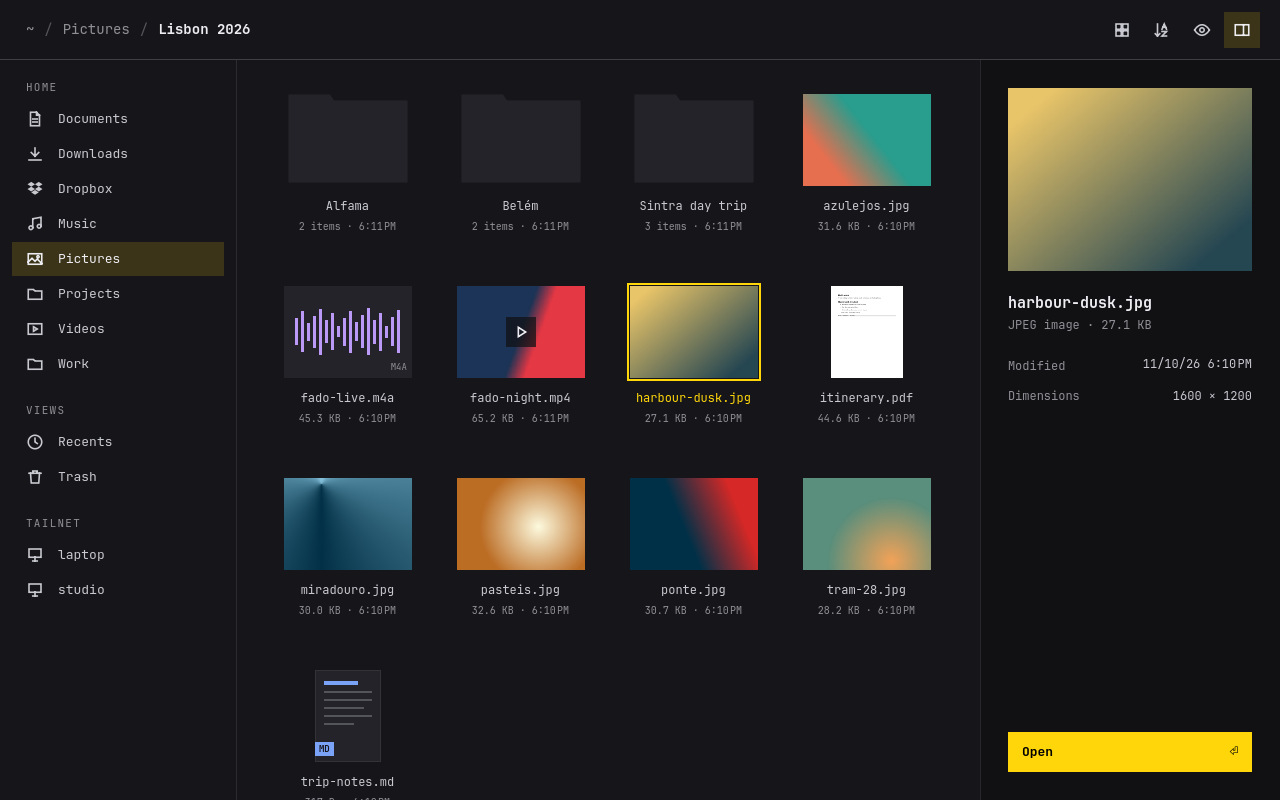
Folio reads a folder when you open it and makes thumbnails as the visible tiles need them. Its project documentation describes a shared thumbnail cache and three ways to browse: a grid for recognising an image, columns for following a path and a list that expands folders in place. Opening a large photo collection needn’t set off a background search through the rest of your home directory.
Suppose you are looking for one picture to attach to an email. Select a thumbnail and press Space to see a full-size preview. You can inspect a PDF or the text of a Markdown document the same way. The file is still selected when you return. Double-clicking does something different. In the candidate’s desktop manual, pictures, music and videos open in Omaview, PDFs in Document Viewer and Markdown in Omawrite. Omaview lets you work through a folder containing both photos and clips in a single window. A preview helps you choose a file. Opening it hands the job to the application associated with its type.
Where did the encoding option go?
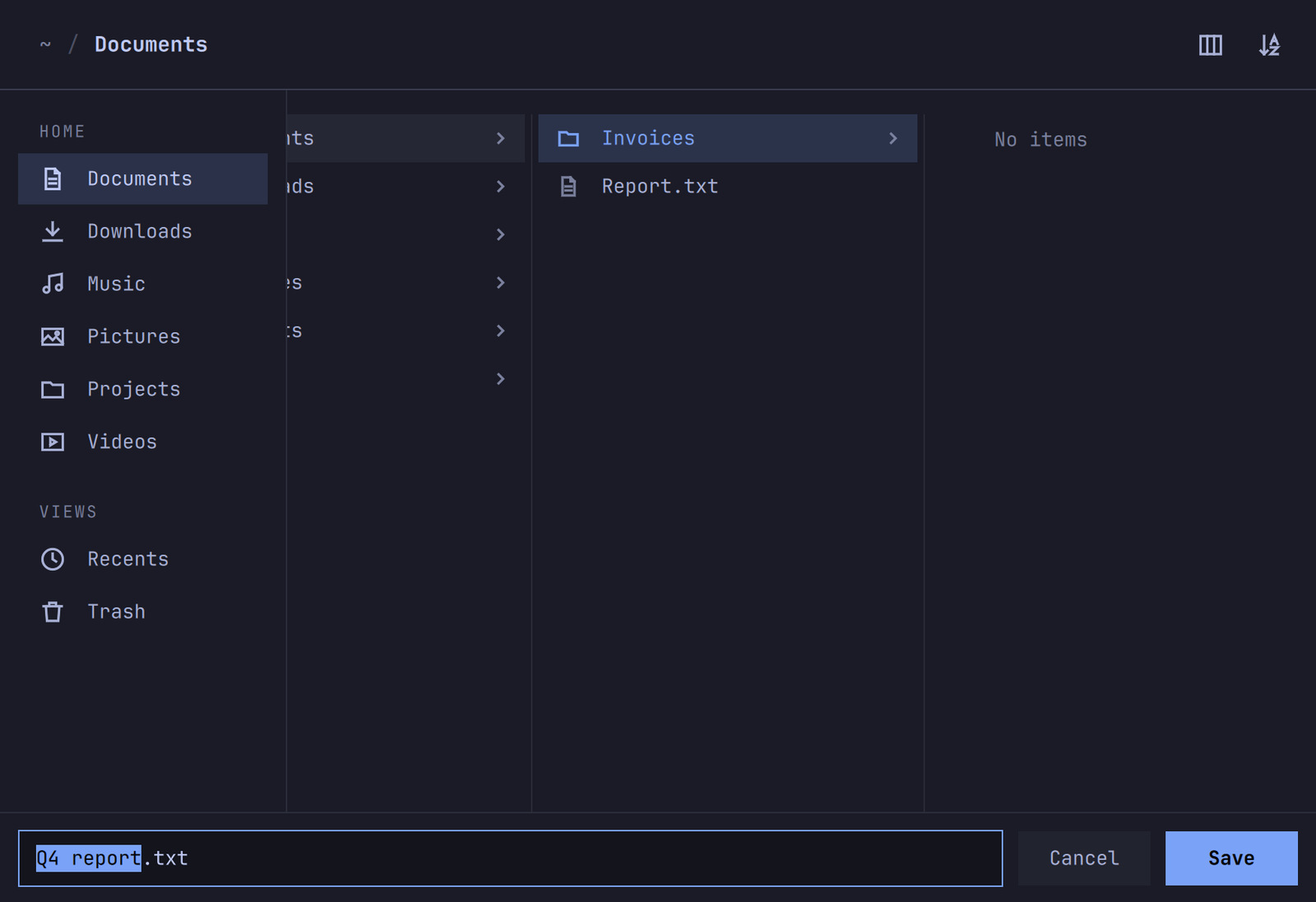
Many Linux applications delegate their file picker to a desktop service known as a portal. They can ask it to select an image or supply a destination for a document. Folio implements that request, so the directory you browse has the same layout and shortcuts as its ordinary window. When an application supplies file-type filters, a funnel button exposes them. The Save window adds a name field at the bottom.
There is a tradeoff. Folio’s chooser documentation says extra controls supplied by the calling app, such as a choice of text encoding, are omitted. The app keeps its defaults. That matters if you are exporting text for an older program that expects a particular encoding. A successful save tells you where the file went. Checking the editor’s own export settings tells you how it was written. The picker also opens as a separate window, which can change where you look for it on a busy desktop.
Omarchy’s preview and the Linux Mint 27 beta offer quite different reasons to boot a test desktop. Here, one revealing check takes less time than exploring the new menus: open an application you rely on, save a disposable document, and look for the option you usually change before pressing Enter.